The activity ticker
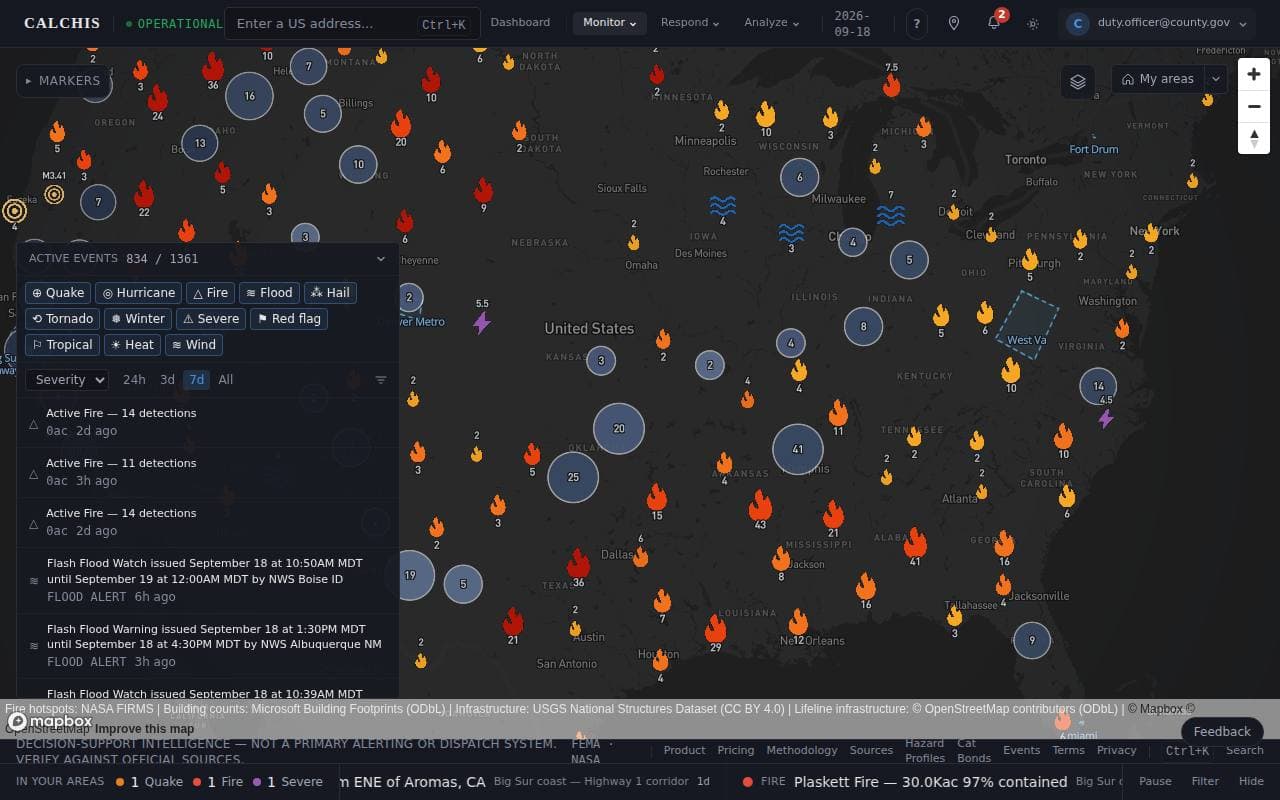
The ticker runs along the bottom of every page while you are signed in. On the left, the count of active events inside your areas by peril; to the right, every one of those events, scrolling, with the area it is in and how long ago it started. On a phone, the same summary is a strip under the page header.
It never claims calm it has not checked. If the last few checks failed, it says it is not updating, rather than freezing on the last count; if an area could not be read, the counts are marked as a floor.
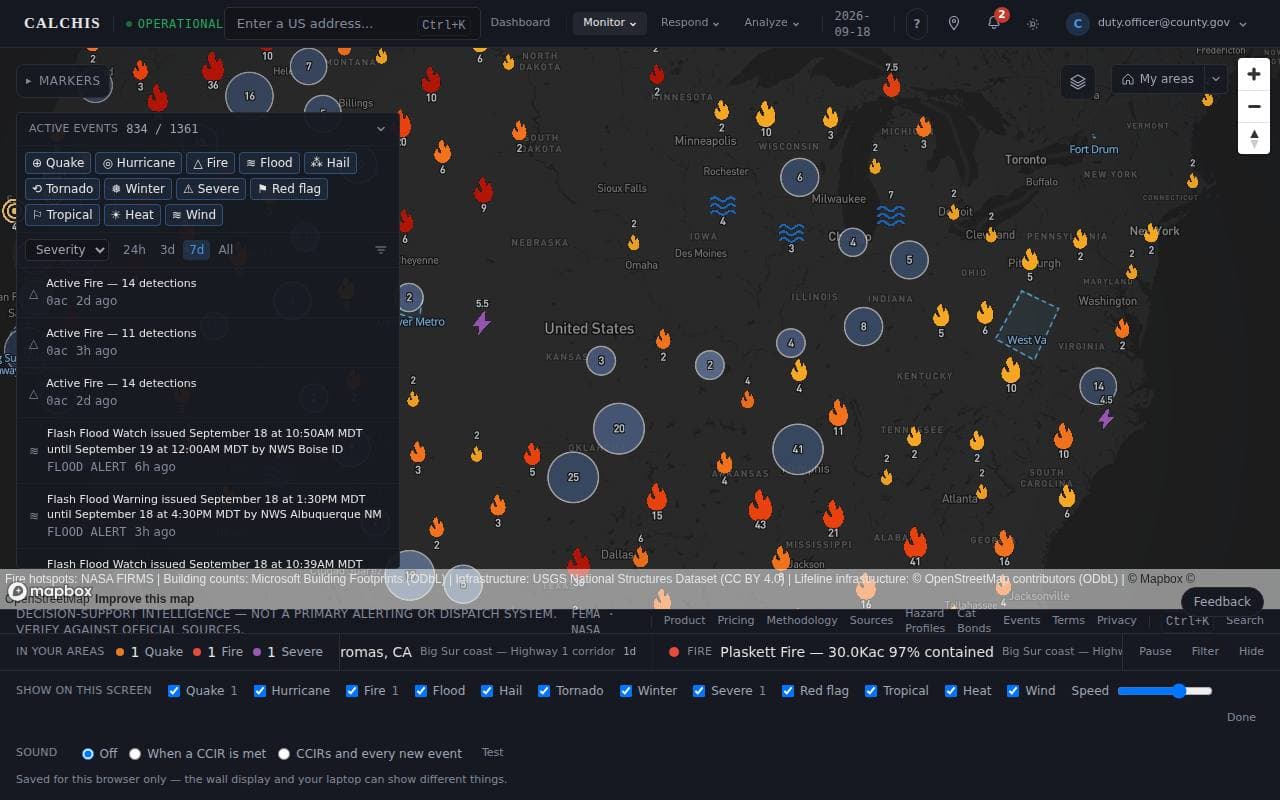
Its settings are per browser, deliberately: the screen on the EOC wall and your laptop can show different perils, at different speeds, with different sound.
Step by step
Step 1: Read the scoreboard
Counts by peril on the left; every event scrolling to the right. A red dot marks events that arrived since this screen last marked them seen. Pause stops the scroll; Hide tucks it away, with a tab to bring it back.
Step 2: Set it up for this screen
Filter chooses which perils this screen shows, how fast it scrolls, and whether it makes a sound when one of your conditions is met.
Last updated September 18, 2026
Related Guides
Decision-support intelligence — not a primary alerting or dispatch system. Verify against official sources.Guides describe how the platform works; they are not a substitute for professional actuarial assessment or for the official guidance of the agencies responsible for an incident.