Being told at 3am
An alerting product is only worth the trust it earns at 3am on day five, when nobody is watching a screen. This is what Calchis does then, and what it deliberately does not.
On the screen: the banner and the tone
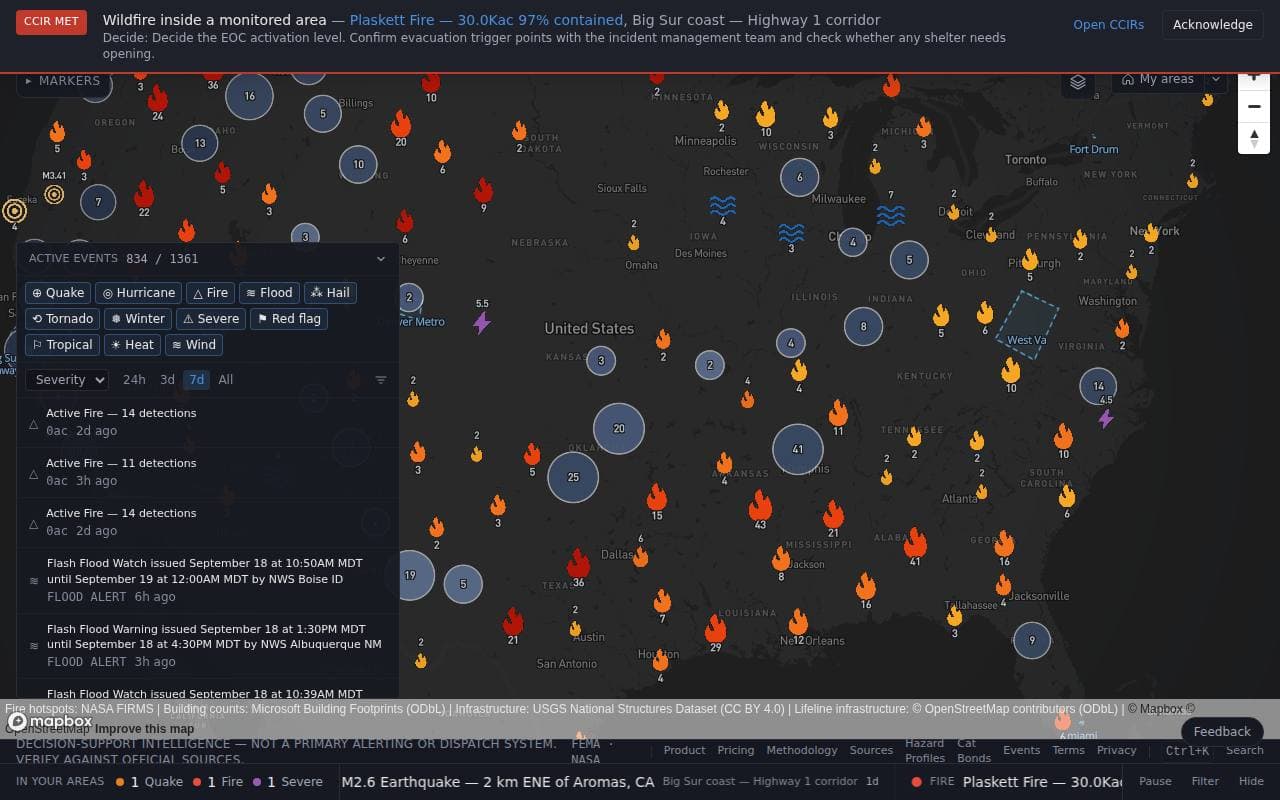
When one of your conditions becomes met — a condition on your Information Requirements list — a red CCIR met banner appears across the top of every page, naming the condition, the event that met it, the area and the decision it forces. It stays until someone presses Acknowledge, because the person who needs it is the one who looks up at the wall ten minutes late. A second event meeting the same condition raises it again: that is news.
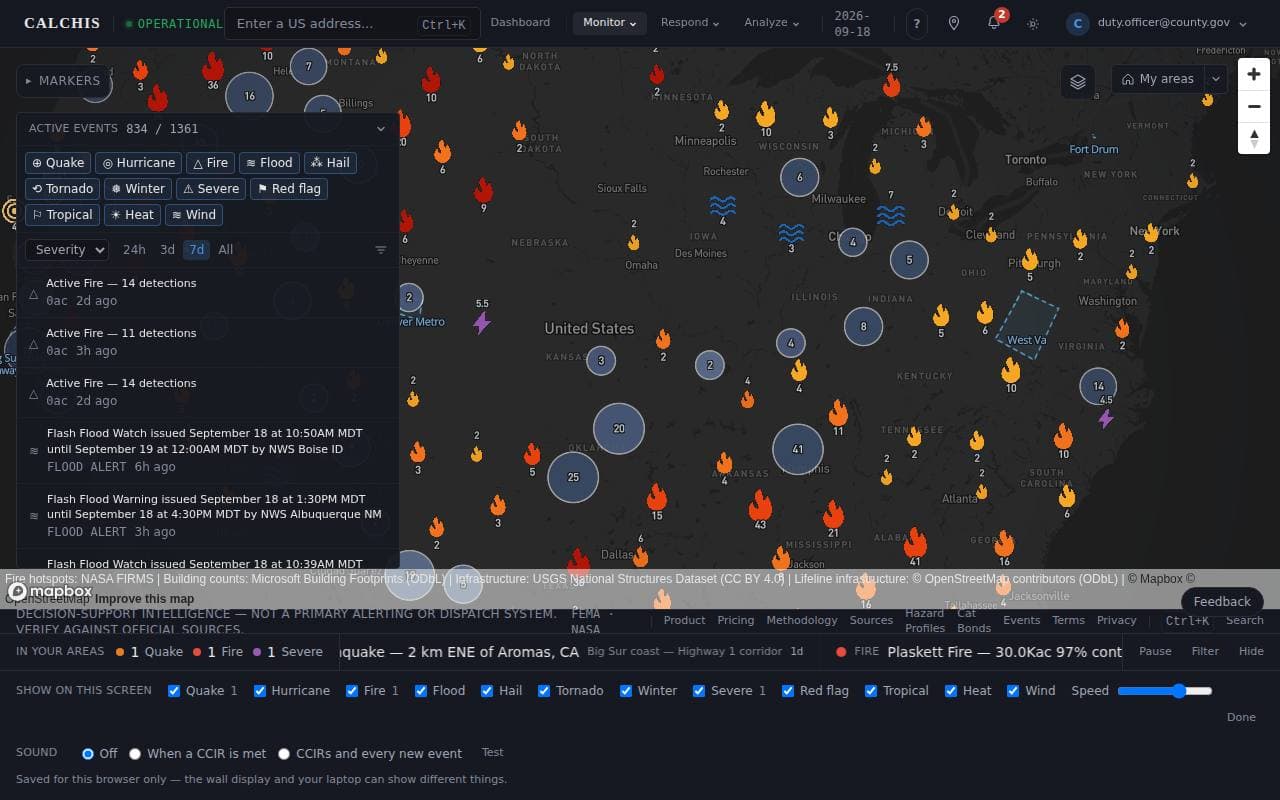
A tone is off until a screen opts in, because a sound that goes off at the wrong moment gets muted for good. Turn it on from the ticker's Filter panel along the bottom of the screen: When a CCIR is met, or CCIRs and every new event. It never sounds just because a page loaded, and it repeats every few minutes while a banner is unacknowledged. Browsers hold sound until someone has clicked the page once; the banner says so when that is why it is silent.
Both are per screen: the wall display and your laptop can be set differently, and acknowledging on one does not acknowledge on the other.
Two different things reach your inbox
Area alerts. When an event's consequence rings reach an area you monitor, you get an email. Severe zones are sent immediately; the outer zones are grouped so one storm is one message rather than nine.
Condition notices. When a CCIR fires on an incident you are working and nobody has raised a decision against it, the people working that incident get an email naming the condition and the decision it forces. See conditions worth waking someone for.
The first is about your jurisdiction. The second is about an incident already running.
What decides whether you get one
Your settings, at alert settings. Two controls matter:
Minimum severity. The default is any — you are told about everything in your areas. Raising it is a real choice with a real cost, and the slider says so.
Zones. Which consequence rings count. All four by default. Zone 4 is the outermost, and turning it off is how people stop hearing about the edge of a storm that later moves.
Defaults are permissive on purpose: a default that suppresses fails silently, in the direction that hurts.
What it will not do
It will not keep talking. A condition that stays true for eleven hours is still one thing to know about. You are told once, reminded at most a few times while it is still unaddressed, and not again after that. A sender that emails every ten minutes gets filtered, and a filtered alerting product is worse than silence, because it looks like coverage.
It will not push to your phone. Push notifications are not built. The toggle on the settings page says "Not built" rather than pretending, because a channel you believe in and do not have is worse than one you know you lack.
It will not dispatch. Calchis is decision support. It is not a primary alerting or dispatch system, and nothing here replaces your warning system or your on-call roster.
Making sure it works before you need it
Three checks, worth ten minutes on a quiet day:
Add the area you actually cover at Areas. Everything else is scoped to it — which events are yours, which conditions are evaluated, what the dashboard watches.
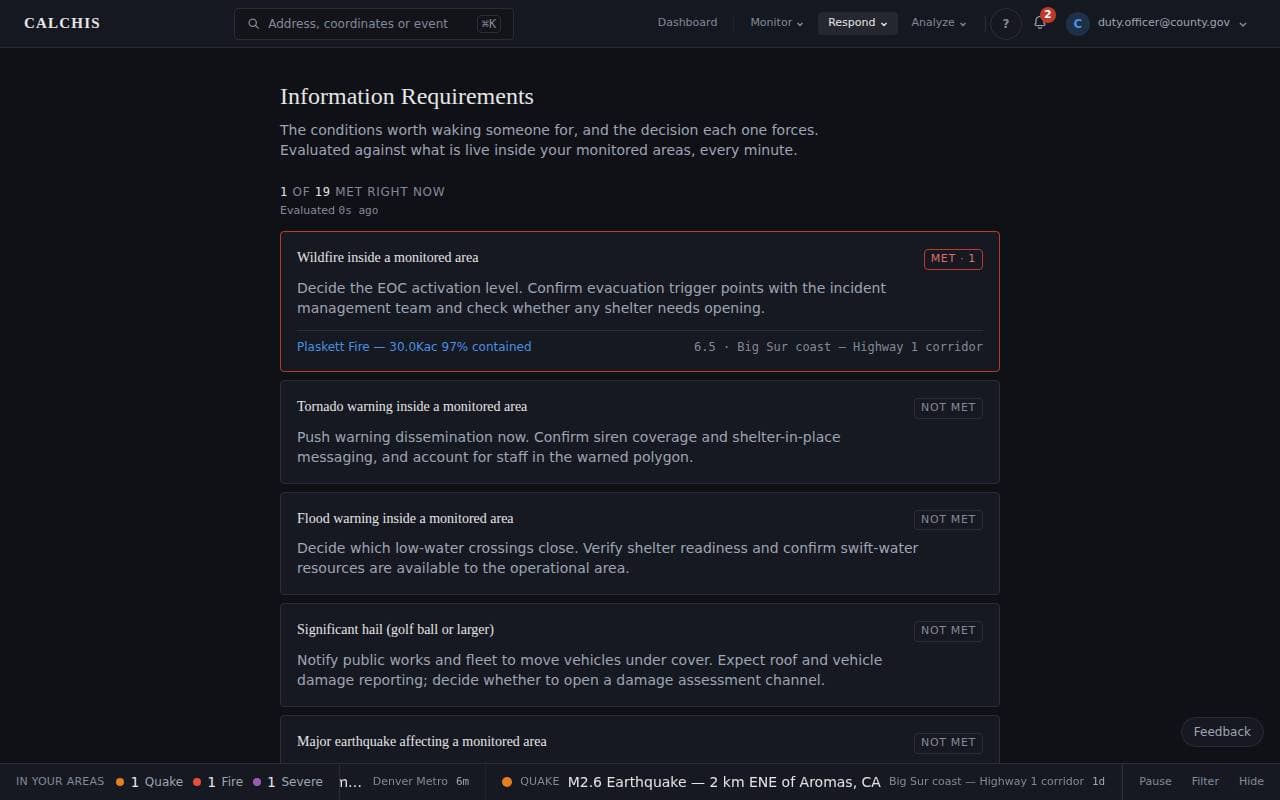
Read the condition list at Information Requirements and change the ones that are wrong for your jurisdiction. The decision text is what someone reads at 3am; make it say what your plan says.
Check the address. Notices go to the address on your account. If your EOC uses a shared duty inbox, make sure the person on duty can see it — an email nobody reads is the same as no email.
Step by step
Step 1: A condition is met
The banner names the condition, the event, the area and the decision. Open CCIRs shows the full list; Acknowledge clears it for this screen.
Step 2: Turn the tone on for this screen
Open Filter on the ticker along the bottom and choose a sound setting. Test plays it, so whoever sets up the wall display hears what they are opting into.
Step 3: Check your conditions
Everything the banner can say comes from this list. Change the decision text to what your plan says, switch off what does not apply, add your own.
Last updated September 18, 2026
Related Guides
Decision-support intelligence — not a primary alerting or dispatch system. Verify against official sources.Guides describe how the platform works; they are not a substitute for professional actuarial assessment or for the official guidance of the agencies responsible for an incident.